
How to Setup your car key in Apple Wallet
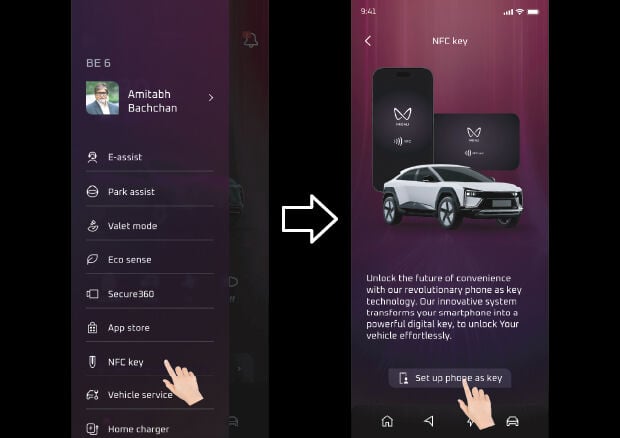
How to Setup your Digital Car Key on iOS
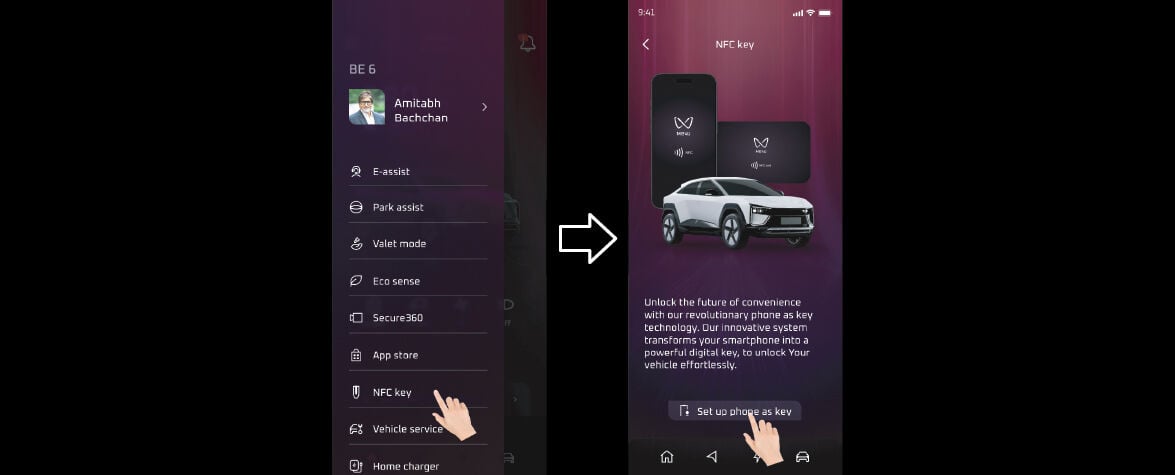
In Me4U app select the 'NFC Key' in the Hamburger Menu and tap "Setup Phone as Key"
Ensure you've logged in from your registered mobile number
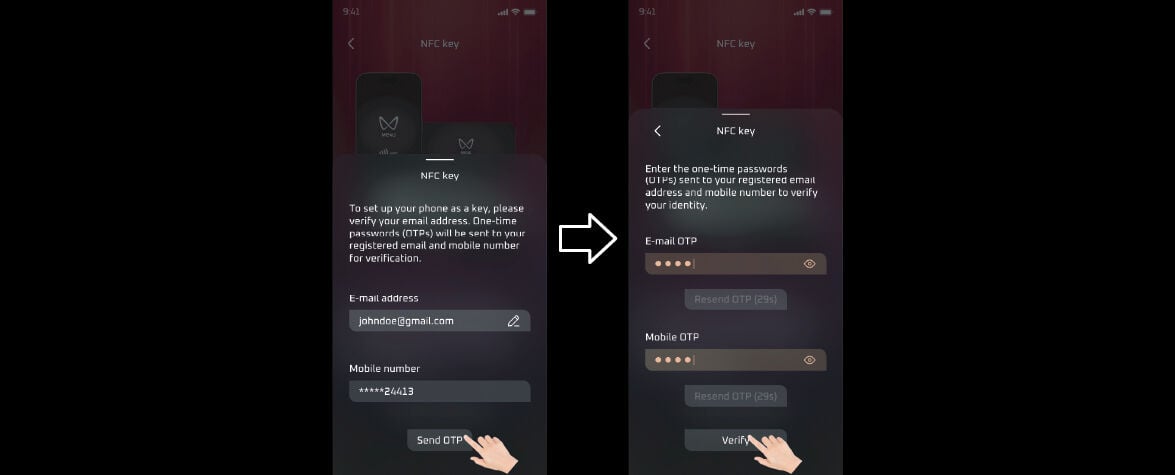
Enter your details and verify your pairing request with the OTP
Your mobile number will be auto-fetched from our records, kindly verify the same.

Turn on the vehicle, place both keyfobs inside the vehicle and proceed with the pairing request
Ensure you have good internet connectivity on both your iPhone and in your vehicle
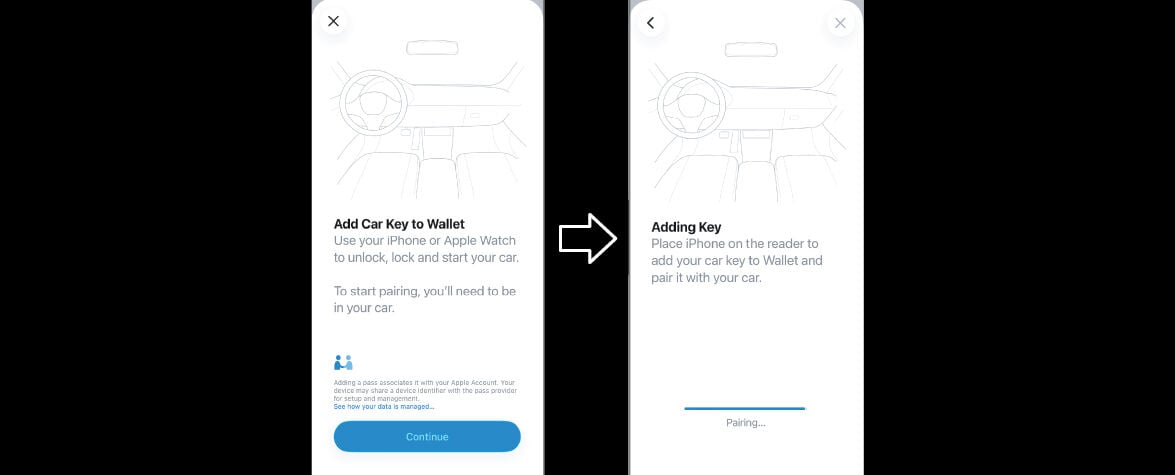
Once the pairing starts, your Apple Wallet will open automatically
You will also receive a welcome email from Mahindra for verification
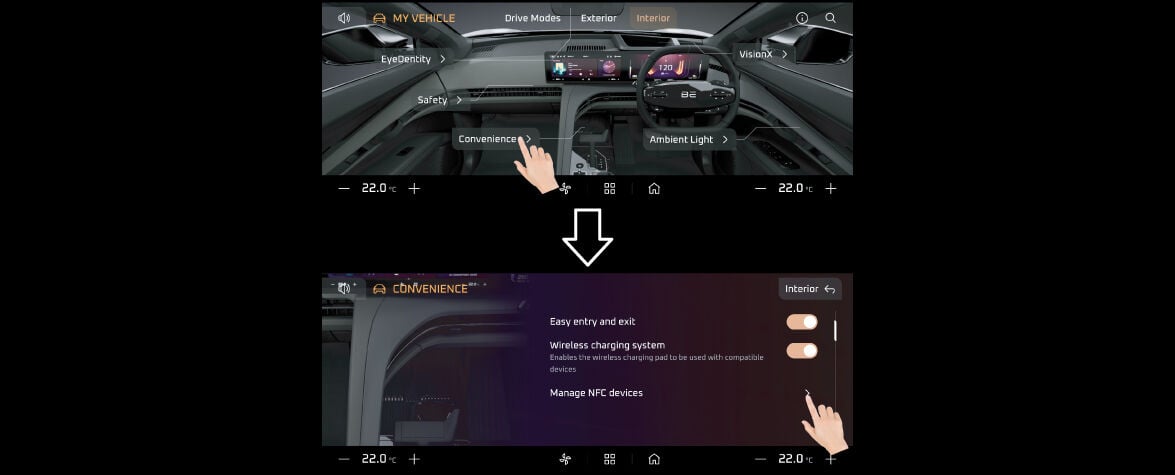
Now place your smartphone in the Wireless Charger pad and navigate to the following path on the vehicle's Central Display
My Vehicle >> Interior >> Convenience >> Manage NFC devices>>Add NFC device and Place your iPhone under it.
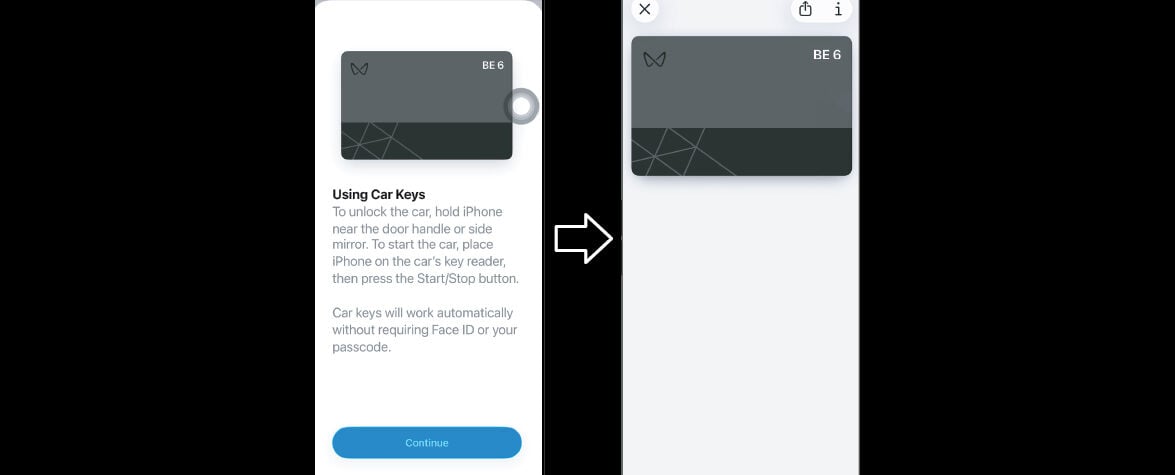
Follow the steps listed on your Apple Wallet until you see your Car Key listed in your Wallet.
A confirmation screen will appear on your vehicle's Central Display upon successful pairing. The Car Key may now be used to lock/unlock, start the vehicle. You may also share it with friends/family.
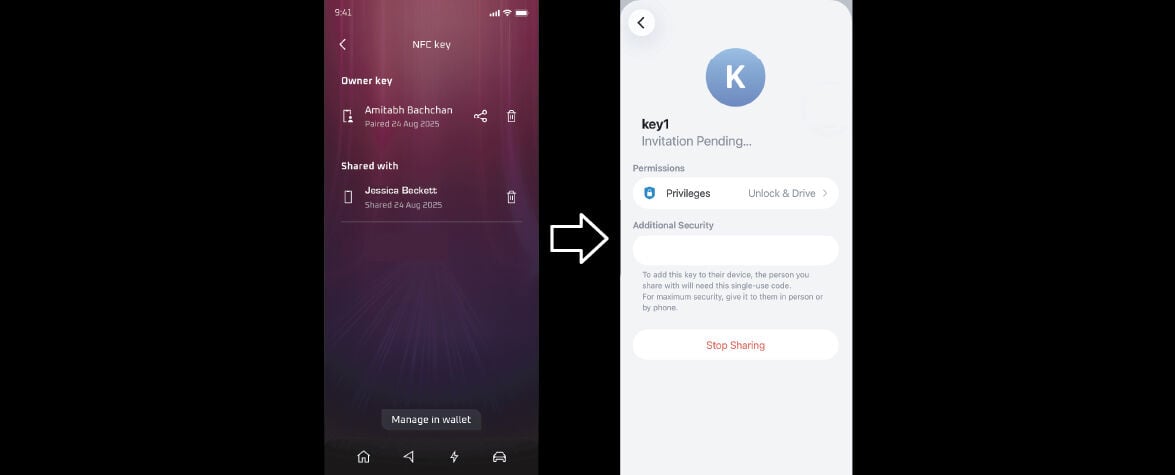
Once paired, you can share your Car Key with someone by clicking on the "Share" icon in your Apple Wallet
You can also use Me4U app for the same by navigating to the NFC Key listed in the hamburger menu of your Me4U app and click on the "Share icon”. You may opt for an authentication code for first time login. Share this code with the recipient. You will be notified upon key activation.
How to Setup your car key in Google / Samsung Wallet
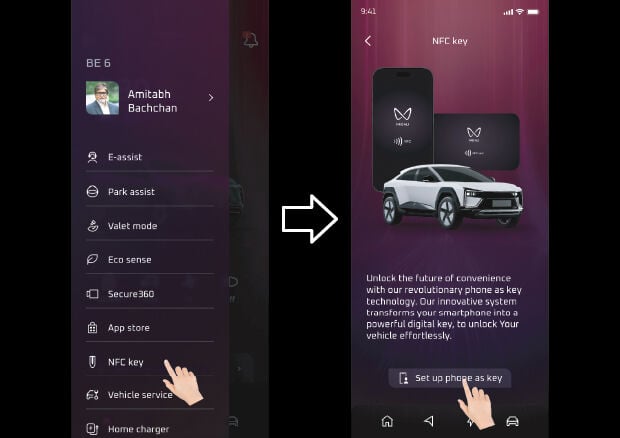
How to Setup your Digital Car Key on Android

Select the 'NFC Key' in the hamburger menu on your Me4U app. Tap on "Setup Phone as Key"
Ensure you've logged in from your registered mobile number

Enter your details and verify your pairing request with OTP
Your mobile number will be auto fetched from our records, kindly verify the same.

Turn on your vehicle, place both keyfobs inside to proceed with the pairing request
Ensure you have good internet connectivity on both your phone and in your Mahindra eSUV

Once the pairing starts, your Google Wallet will open automatically
You will also receive a welcome email from Mahindra for verification

Now place your smartphone on the Wireless Charger Pad and navigate to the following path on the vehicle's Central Display
My Vehicle >> Interior >> Convenience >> Manage NFC devices>>Add NFC device and select Owner’s phone under it.

Follow the steps listed on your Google phone until you see your Digital Car Key listed in your Wallet.
A confirmation screen will appear on your vehicle's Central Display upon successful pairing. The Digital Car Key may now be used to lock/unlock, start the vehicle. You may also share it with friends/family.

You may choose to share your Digital Car Key by clicking on the "Share" icon in your Google Wallet
You may also use the Me4U app to share your Digital Car Key. Navigate to the Digital Car Key listed in the hamburger menu of your Me4U app and click on the "Share icon”. You may opt for an authentication code for first time login. Please share this code with the recipient. You will be notified upon key activation.
How to use your Digital Car Key
How to Setup your Digital Car Key on iOS

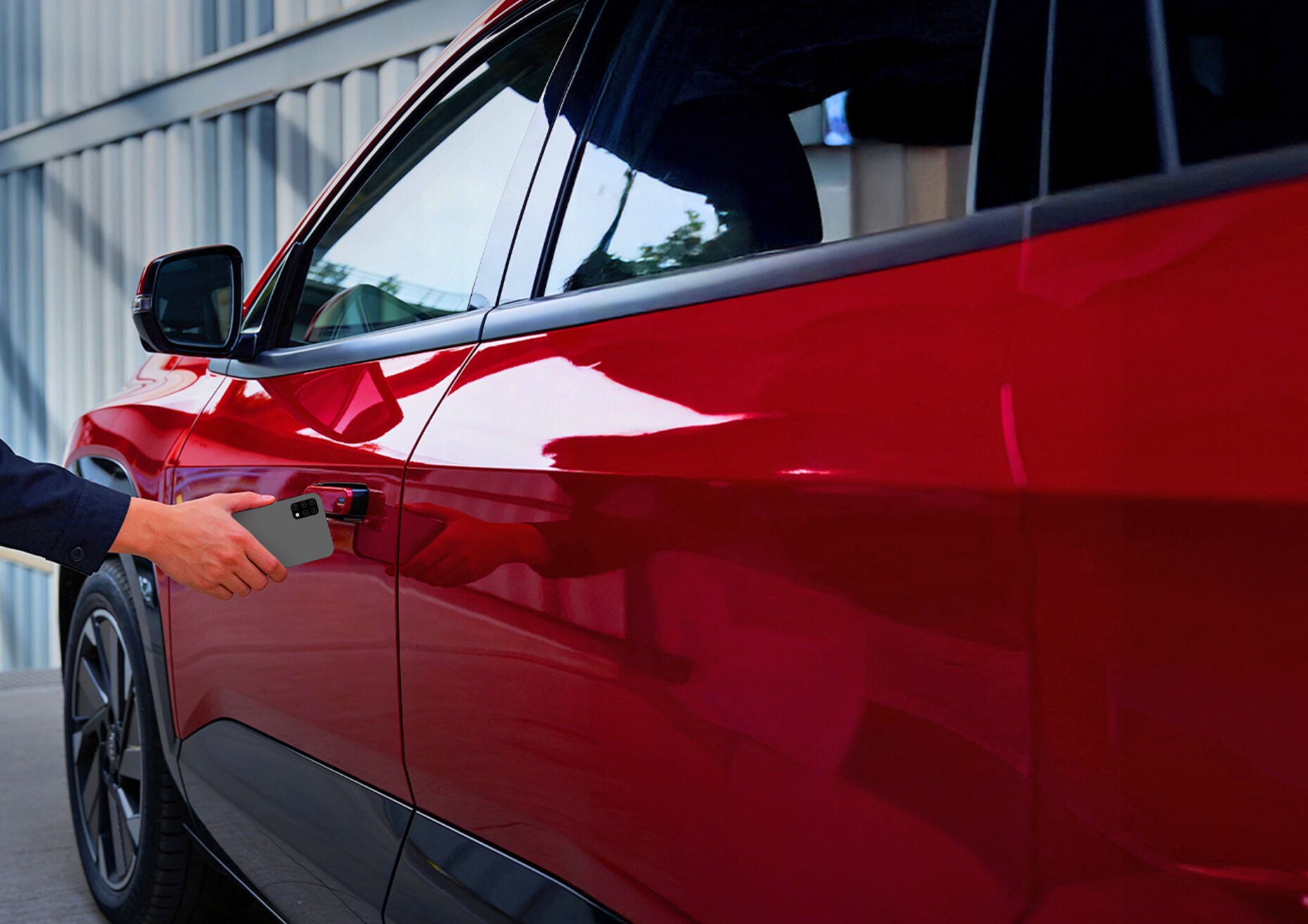
Tap your iPhone, Apple Watch, or Android phone on the door handle to unlock the vehicle.
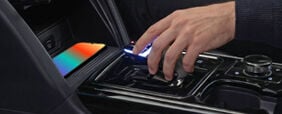
Place your device on the wireless charging pad and press the Start button to start the vehicle.
Once you've arrived, tap your iPhone, Apple Watch, or Android phone on the door handle to lock the vehicle.