Editorial Team – Mahindra Electric Origin SUVs | Read time ~4 minutes
Quick answer
You can unlock a Mahindra BE 6, XEV 9e or XEV 9S with an iPhone, Apple Watch, Google Pixel, Samsung Galaxy or an NFC key card. Tap your device on the driver-side door handle to unlock, then place it on the wireless charging pad and press Start to drive.
What is Digital Car Key?
Digital Car Key turns your phone, smartwatch or NFC card into the key to your Mahindra eSUV. You can lock, unlock and start the vehicle, and share access with up to 15 trusted users. It is built on Car Connectivity Consortium (CCC) security protocols and works with Apple Wallet, Google Wallet and Samsung Wallet.
Key facts
- Works with iPhone, Apple Watch, Google Pixel, Samsung Galaxy and NFC key cards
- Share your key with up to 15 users
- Unlocks at the driver-side door handle
- Needs internet only for pairing and sharing
- Available on XEV 9e, XEV 9S and BE 6 from Pack Two onwards
How do I set up Digital Car Key?
- In the Me4U app, open the menu, select NFC Key and tap Setup Phone as Key. Log in with your registered mobile number.
- Enter your details and verify the pairing request with the OTP.
- Turn on your eSUV and place both key fobs inside. Make sure your phone and vehicle have good internet.
- When pairing starts, your wallet opens automatically: Apple Wallet on iPhone, Google Wallet or Samsung Wallet on Android.
- Place your phone on the wireless charger pad. On the central display, go to My Vehicle > Interior > Convenience > Manage NFC devices > Add NFC device. On iPhone, place the iPhone under it. On Android, select Owner's phone.
- Follow the steps in your wallet until the key appears. A confirmation shows on the central display.
What are the 5 ways to unlock?
- Way 1, iPhone: Tap your iPhone on the driver-side door handle.
- Way 2, Apple Watch: Tap your Apple Watch on the driver-side door handle.
- Way 3, Google Pixel: Tap your Pixel phone on the driver-side door handle.
- Way 4, Samsung Galaxy: Tap your Galaxy phone on the driver-side door handle.
- Way 5, NFC key card: Tap your NFC key card on the driver-side door handle.
How do I start, lock and share my key?
- Start: Place your phone, watch or card on the wireless charging pad and press the Start button.
- Lock: Tap your device on the driver-side door handle when you arrive.
- Share: In your wallet, select the key and tap Share. You can also open Me4U, go to NFC Key and tap the Share icon. Add an activation code for extra security.
Tip: For better security, turn on user authentication on your Android phone, or turn off Express Mode in Apple Wallet, so your eSUV unlocks only when your phone is unlocked.
When should you use it?
- When you do not want to carry a key fob
- To give family or friends secure access without handing over a key
- When your hands are full and you want to unlock with your watch
Frequently Asked Questions (FAQs)
Q1: Does Digital Car Key work when my phone battery is low?
Yes. It is designed to work in battery low mode. If user authentication (Android) or Express Mode (Apple) is on, it may not work in that mode.
Q2: Do I need internet to unlock my eSUV?
No. Only pairing and sharing need internet. After pairing, you can lock, unlock and start without it.
Q3: Which door handle works with Digital Car Key?
The driver-side door handle on the XEV 9e, XEV 9S and BE 6.
Q4: How many digital keys can I share?
Each eSUV supports one Owner's phone key and 15 shared phone keys, across Android and iOS.
Q5: What should I do if I lose my phone?
Mark the phone as lost in Apple Find My, Google Find Hub or Samsung Find from another device. You can also call Mahindra Customer Care on 1800 209 6006.
Disclaimers:
Updates as of October 2026. Features are subject to change without prior notice.
Feature available in select variants, subject to the latest software update being installed in your vehicle/Me4U app.
Digital Car Key is available in select variants: XEV 9e, XEV 9S and BE 6 from Pack Two onwards, BE 6 Formula E Edition and XEV 9e Cineluxe. Compatible phones and watches are listed on the Digital Car Key page.
This content is published as part of Mahindra Electric SUV’s informational and educational initiatives and may include opinions, interpretations, and forward-looking perspectives based on publicly available sources. It should not be construed as news reporting, professional advice, or an official company position unless explicitly stated.
Mahindra and its affiliates disclaim any liability arising from reliance on this content, and readers are advised to conduct their own due diligence.
Need Help or Support?
For any further assistance or detailed guidance, please reach out through official Mahindra Electric Origin SUVs support channels:
Email: customercare@mahindra.com
Phone: 1800 209 6006
Tags
Mahindra eSUVs, Digital Car Key, Phone as Key, NFC Key, Apple Wallet, Google Wallet, Samsung Wallet, Me4U App, BE 6, XEV 9e, XEV 9S
News and Press Releases
10 February 2026
Mahindra Scales Up Aftersales Service...
Mahindra Scales Up Aftersales Service Operations in Delhi NCR
14 January 2026
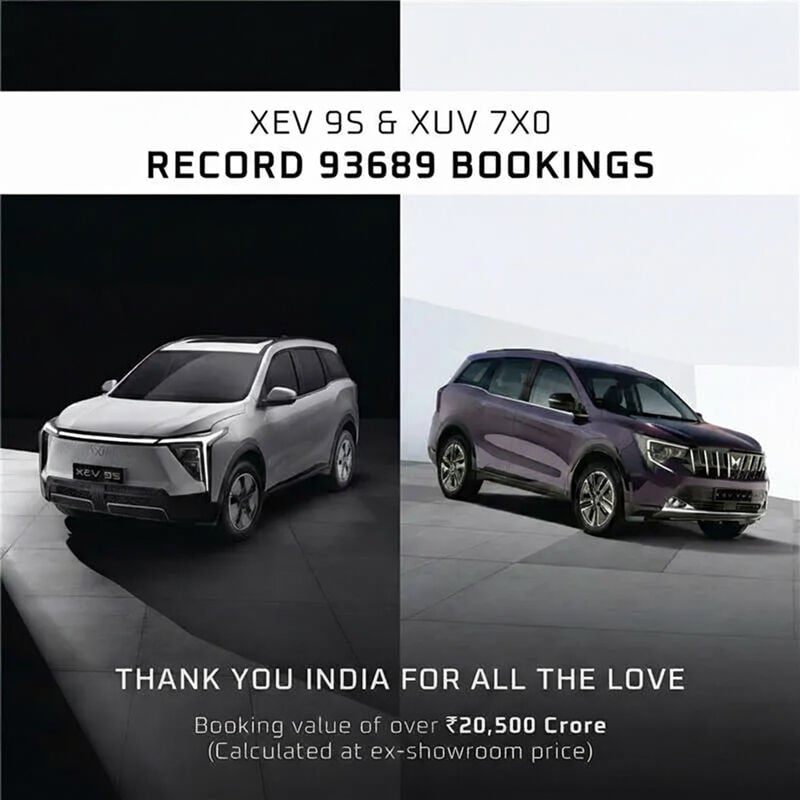
Mahindra XEV 9S and XUV 7XO record 93,689 Bookings
Booking Value of over ₹ 20,500 crore (*at ex-showroom price)
04 July 2025
Mahindra to Commence Deliveries of BE 6 and XEV 9e Pack Two from End-July
Now with both 59 kWh and 79 kWh battery options
9 Apr 2025
Mahindra Delivers 3000 All-Electric Origin SUVs Across India
Overwhelming response for both XEV 9e and BE 6
14 Feb 2025
Mahindra Electric Origin SUVs create new record in the EV category securing 30 179 bookings on day 1
Registered a booking value of ₹ 8472 crores (at ex-showroom price)

5 Feb 2025
Mahindra eSUVs to open bookings from 14th Feb, 2025
9 variants of the XEV 9e & BE 6 to be available for booking
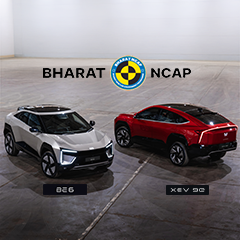
14 Jan 2025
BE 6 makes its gaming debut in BGMI
KRAFTON X Mahindra redefine virtual engagement for gamers

7 Jan 2025
Prices for XEV 9e & BE 6 top variants announced
Test drives to begin from 14th January in select cities
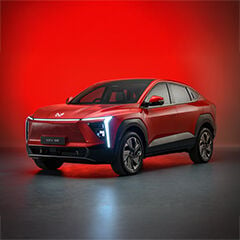
7 Dec 2024
Mahindra to contest brand rights of BE 6e in court
Meanwhile, to name its Electric Origin SUV “BE 6”
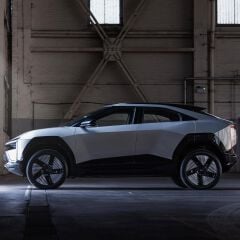
29 Nov 2024
Unprecedented Safety of Mahindra eSUVs Demonstrated
Showcased: Live EV Crash and Battery Torture Tests

29 Nov 2024
Sonic Studio Experience by Mahindra
Immersive in-cabin audio experience in BE 6e & XEV 9e
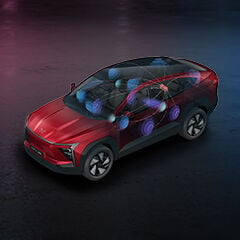
26 Nov 2024
Mahindra's Electric Origin SUVs launched at Unlimit India
XEV 9e starts at Rs. 21.90 Lakh and BE 6e at Rs. 18.90 Lakh

22 Nov 2024
Mahindra Teases Sketches of BE 6e & XEV 9e
World Premiere at UNLIMIT INDIA, on 26th November in Chennai

21 Nov 2024
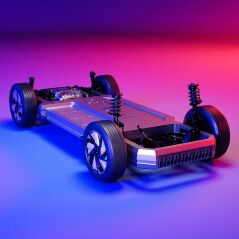
INGLO: Mahindra’s Electric Origin Architecture
XEV 9e & BE 6e World Premiere on 26th November in Chennai
04 Nov 2024
Mahindra debuts Electric Origin SUVs Named XEV 9e and BE 6e
World Premiere at UNLIMIT INDIA, on 26th November in Chennai

8 Jan 2025
New state-of-the-art EV manufacturing facility unveiled in Chakan
Next-gen EV plant to be dedicated for EV manufacturing & battery assembly